See Exactly How IronKite Works
Up and Running in Under 10 Minutes
No training sessions. No IT department. No 200-page manual. If your crew can use a smartphone, they can use IronKite. Below is a screen-by-screen look at every part of IronKite — what every section does and why it makes your team faster.
The web console screenshots below are shown in desktop view — every screen is also fully responsive and works seamlessly on any tablet or mobile browser. Field technicians get a dedicated native mobile app (iOS & Android), shown in the section below.
Office Manager & Dispatcher
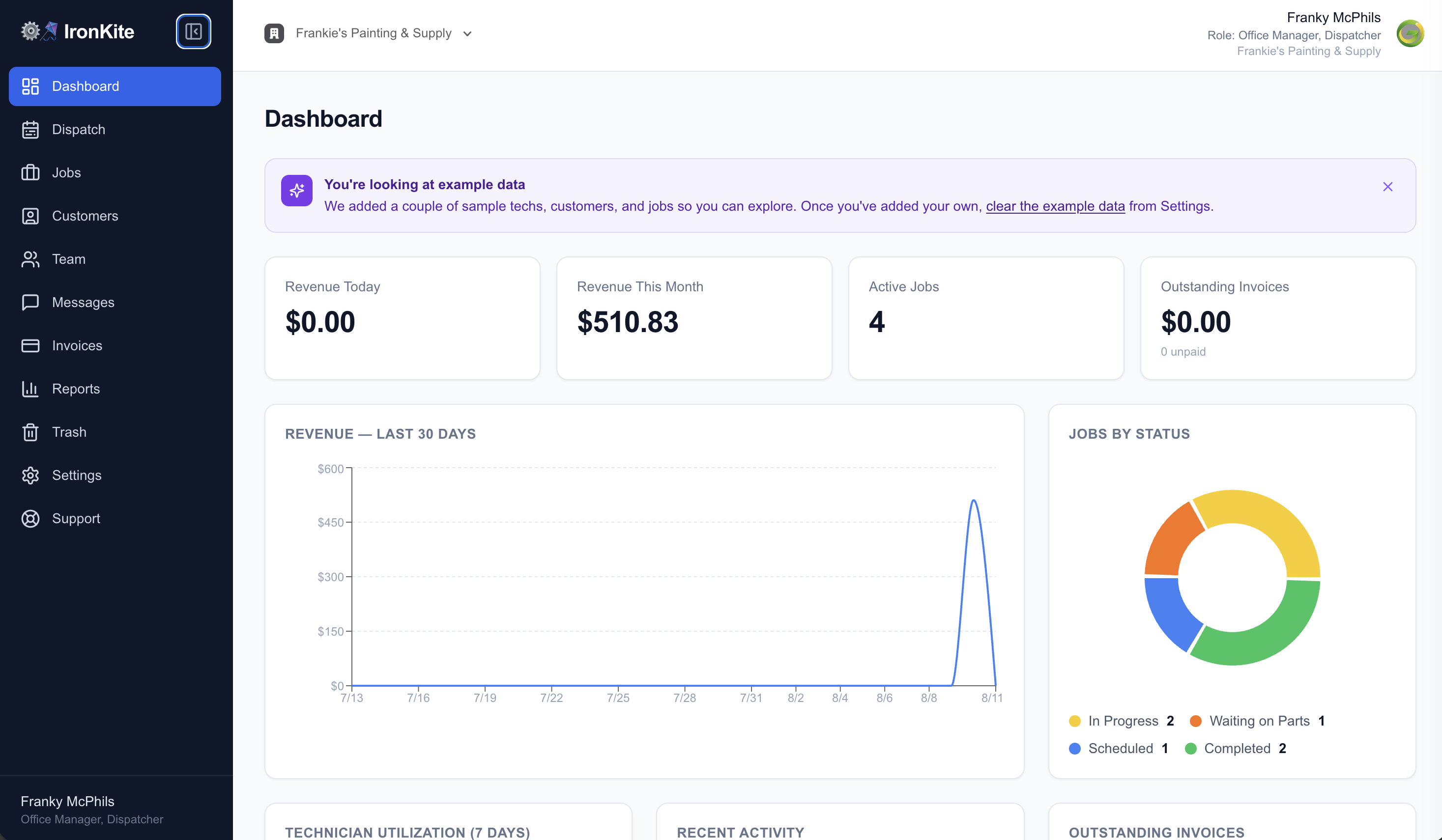
Dashboard — Revenue & Team at a Glance
The moment you log in, your business pulse is visible. Today's revenue, this month's totals, open and completed job counts, and a 30-day revenue trend chart are right there — no digging required. The Technician Utilization chart shows how many hours each field tech has logged, so you can spot who is overloaded and who has capacity before the day gets away from you.
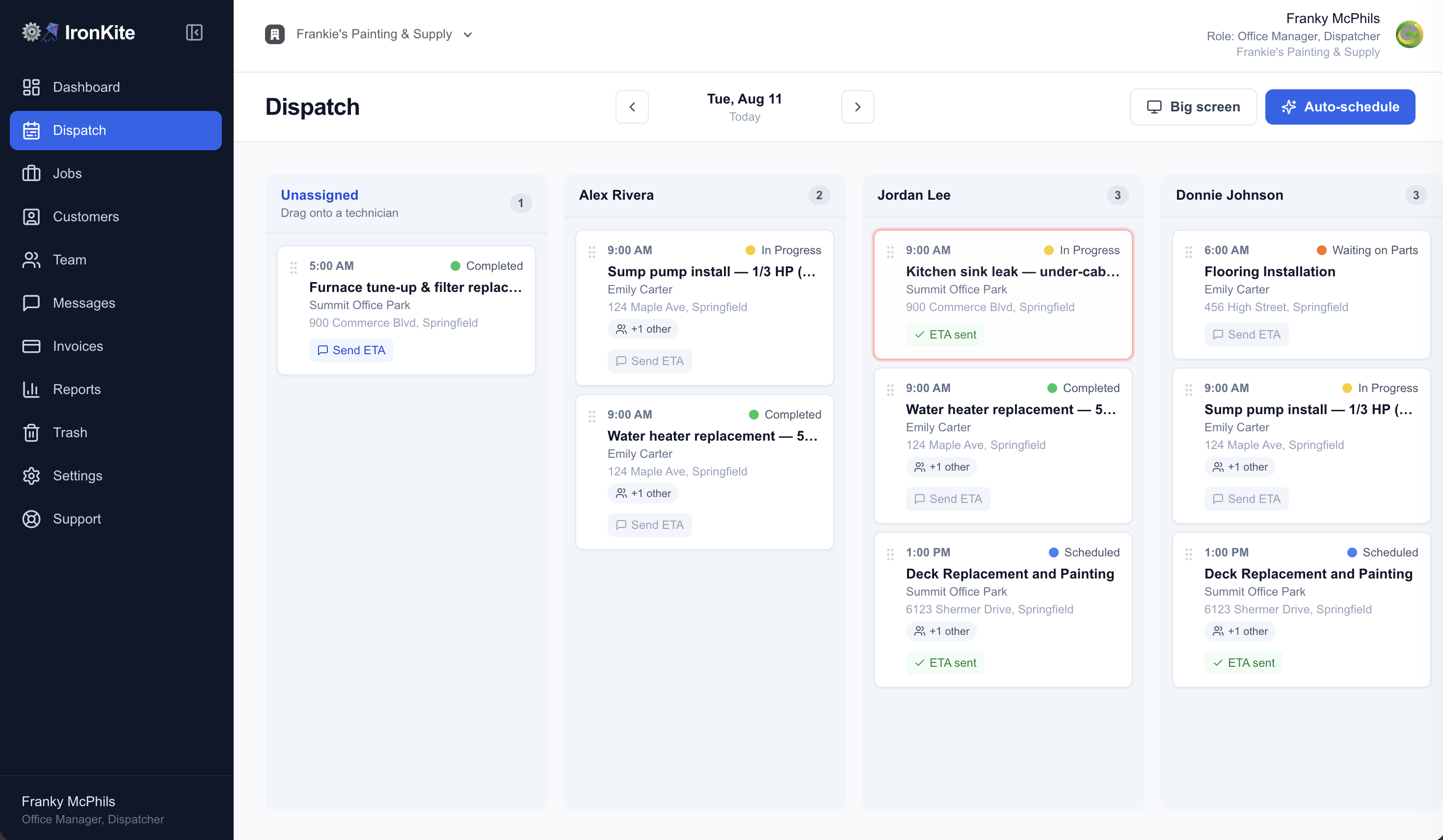
Dispatch Board — Drag-and-Drop Scheduling
The dispatch board gives your team a clear picture of who is going where and when. Technician columns sit side-by-side so you can see availability at a glance. Drag an unscheduled job onto a tech's column to assign it — they get a push notification on their phone instantly. The AI Scheduler button analyzes job locations, tech specialties, and distance to suggest the most efficient assignment order for the day. Hit the Big Screen button to throw today's board up on your office TV or monitor — every tech and coordinator stays locked in sync at a glance.
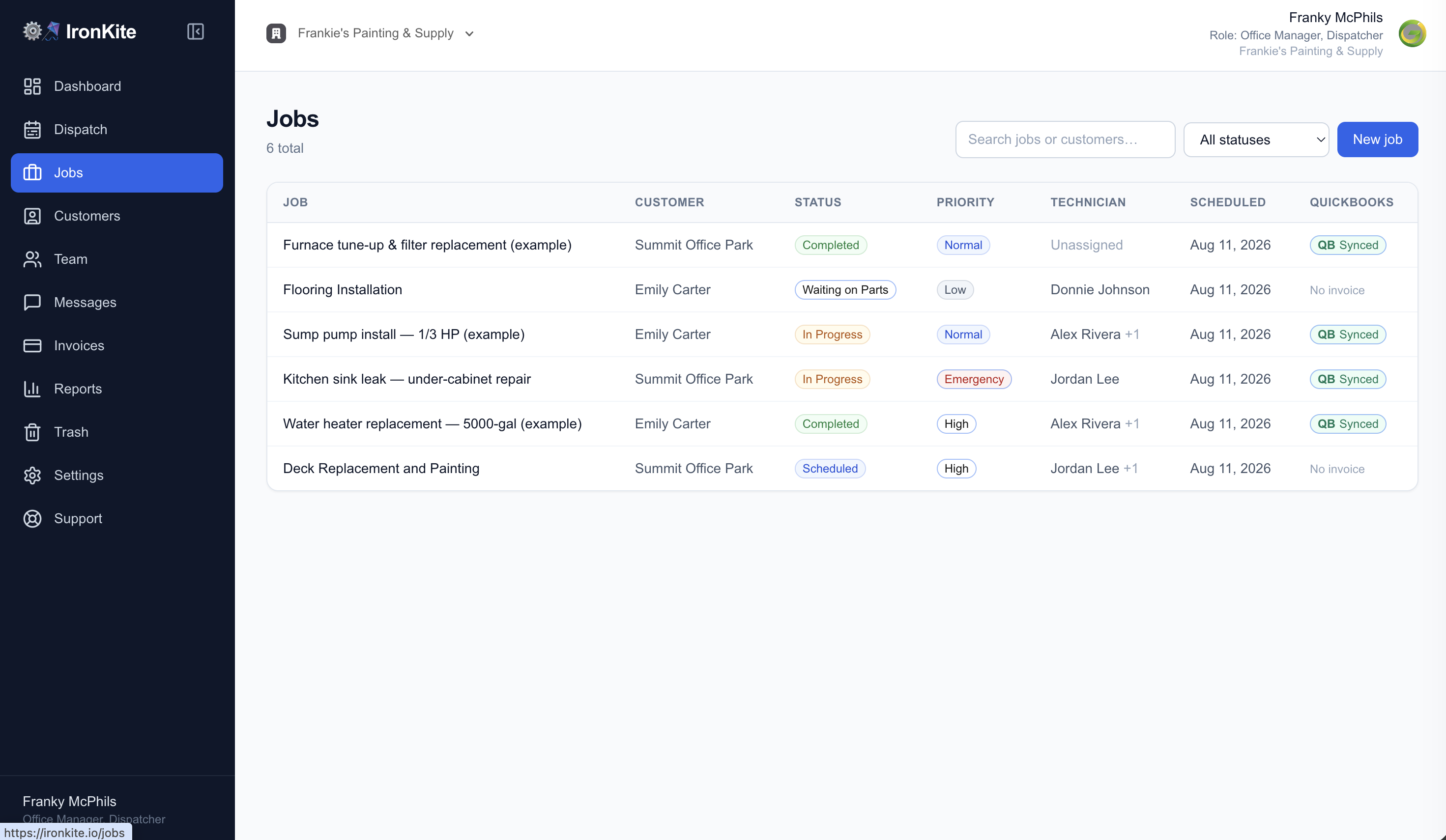
Jobs — Every Job, Every Status, One View
The Jobs screen is the central hub for tracking work in flight. Filter by status (Scheduled, In Progress, Complete) or priority (High, Normal, Low) to zero in on what needs attention. Click any job to open its full detail page — customer info, notes, photos, checklist, materials, time entries, estimate, invoice, and signatures are all in one place. No more hunting through spreadsheets or chasing techs for updates.
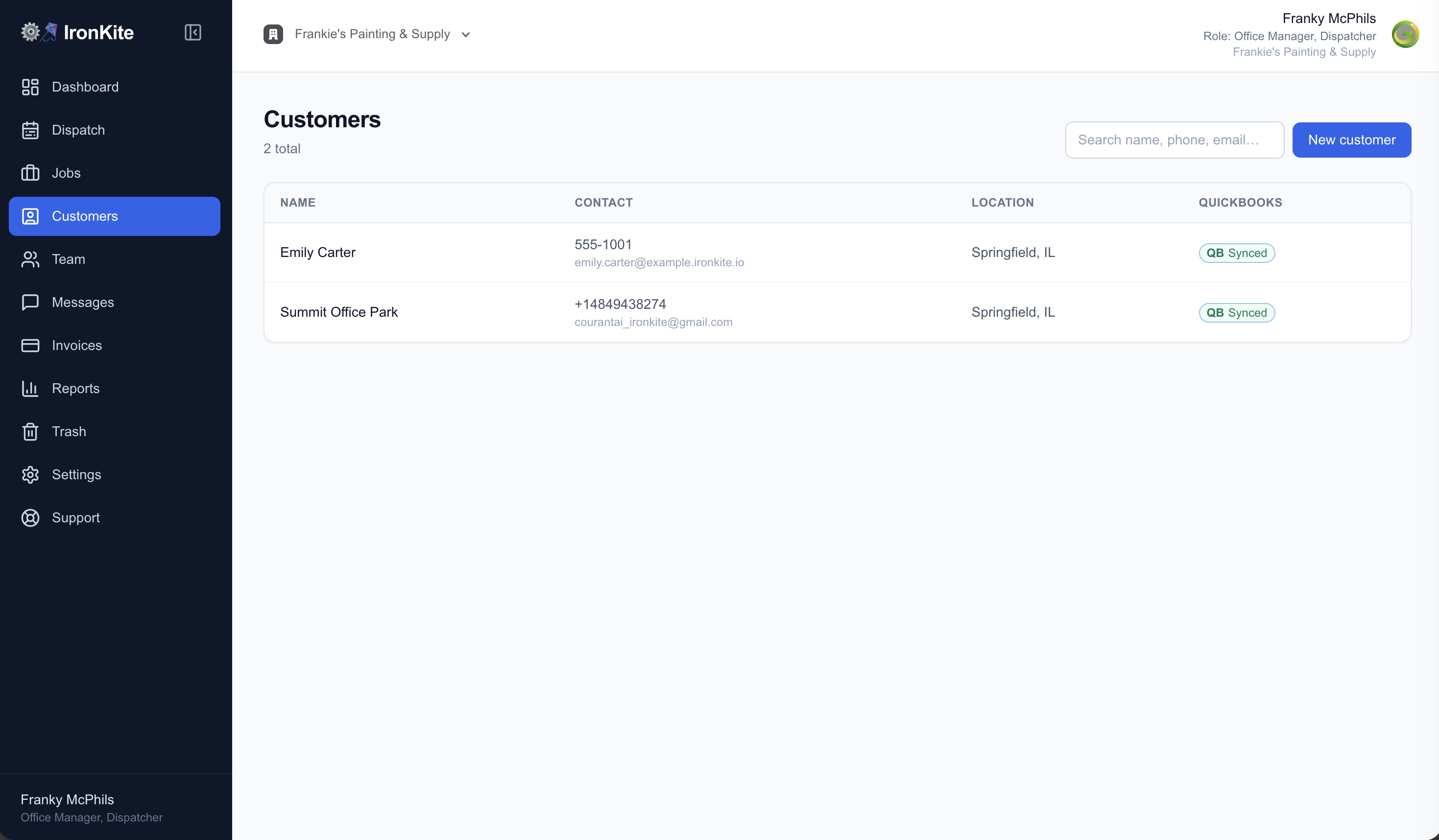
Customers — Your Full Client List
Every customer your company has ever worked with lives here. Search by name, view contact details, and see the complete job history for any account in seconds. When you create a new job for an existing customer, IronKite pre-fills their address and contact info so your dispatcher never has to type it twice. Clean customer records also power faster invoicing and smoother QuickBooks sync.
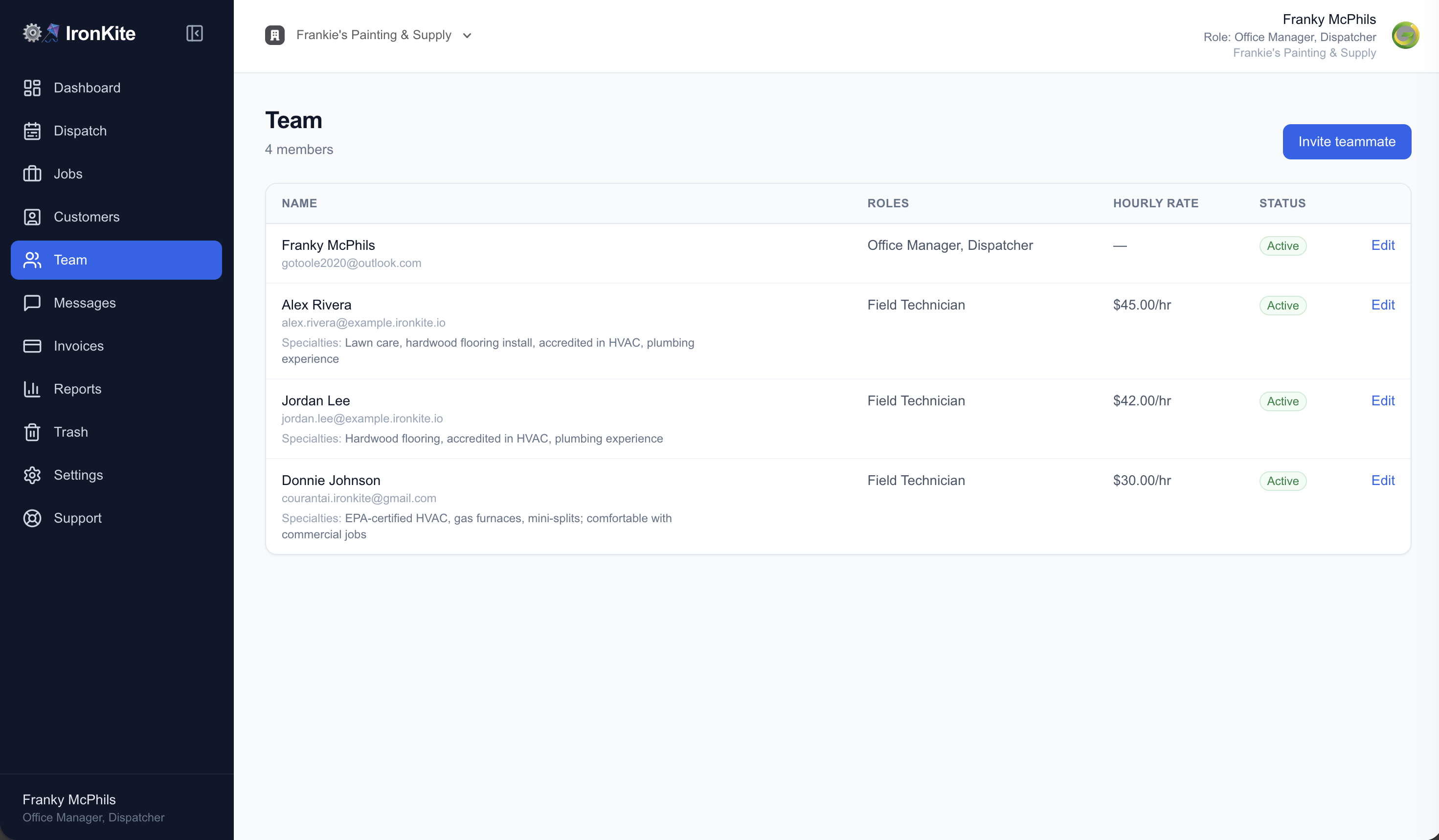
Team — Roles, Invites & Field Tech Specialties
Add office managers, dispatchers, and field technicians with a single email invite. Each person gets the role-appropriate view — techs see only their assigned jobs on mobile; office managers and dispatchers get the full web console. Field tech profiles include a specialties field so the AI Scheduler knows who to recommend for roofing versus HVAC versus electrical calls. Manage your whole crew from one screen.
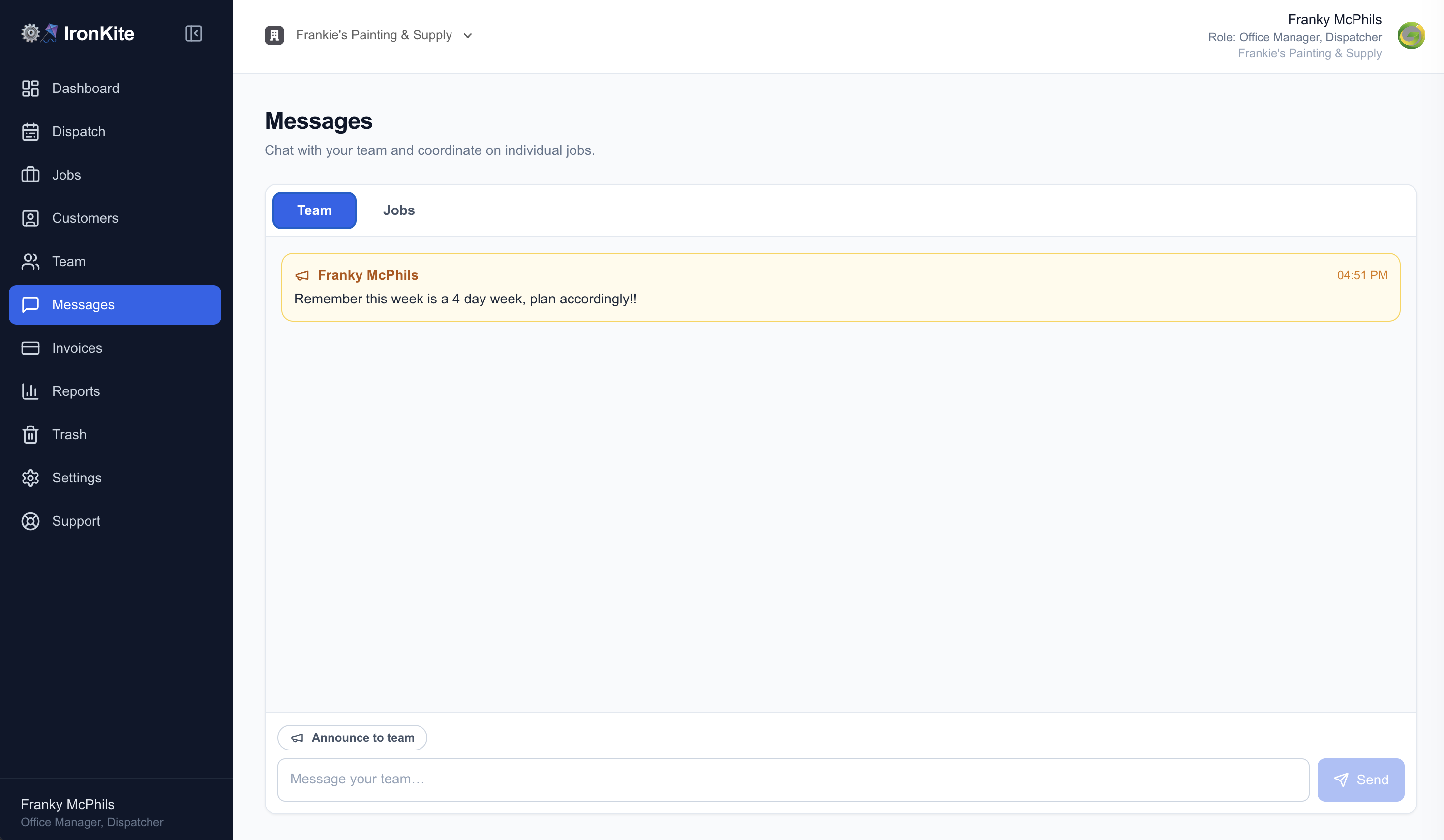
Messages — Team Chat, Right in the Console
Keep your whole team on the same page without switching to a separate chat app. Office staff can send messages from the web console; field techs reply from the mobile app. Announcements go out to the entire team with one click. Push notifications make sure nobody misses an important update, even when they're on the road.
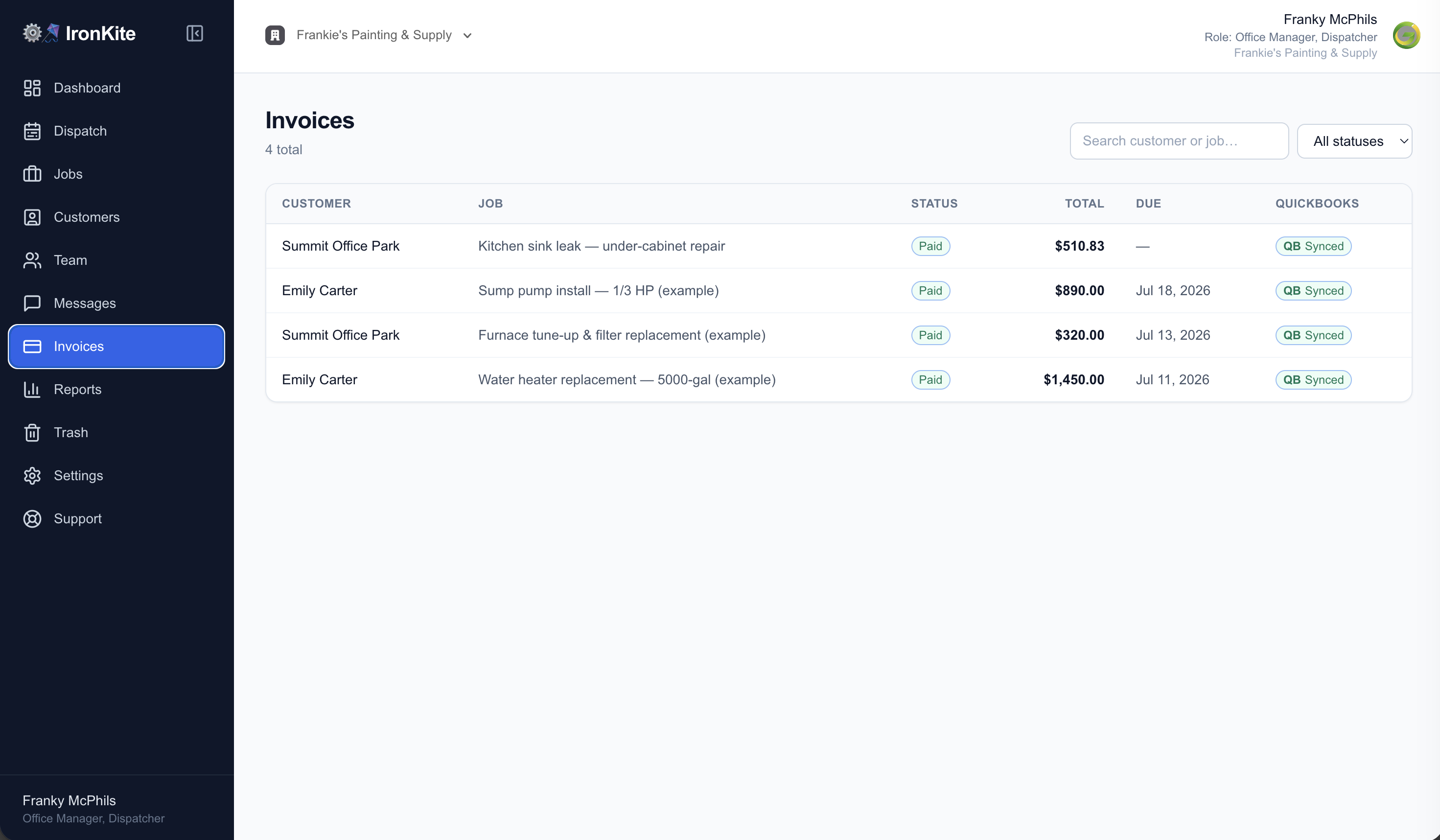
Invoices — Send, Track & Get Paid
Every invoice your team has generated lives here, with status filters to instantly surface what's unpaid. Send a Stripe payment link directly to the customer with one click — they pay by card or ACH from their phone. When a payment comes in, the invoice flips to Paid and QuickBooks records the transaction automatically. Cash and check payments can be marked paid on-site by the field tech, no office call needed.
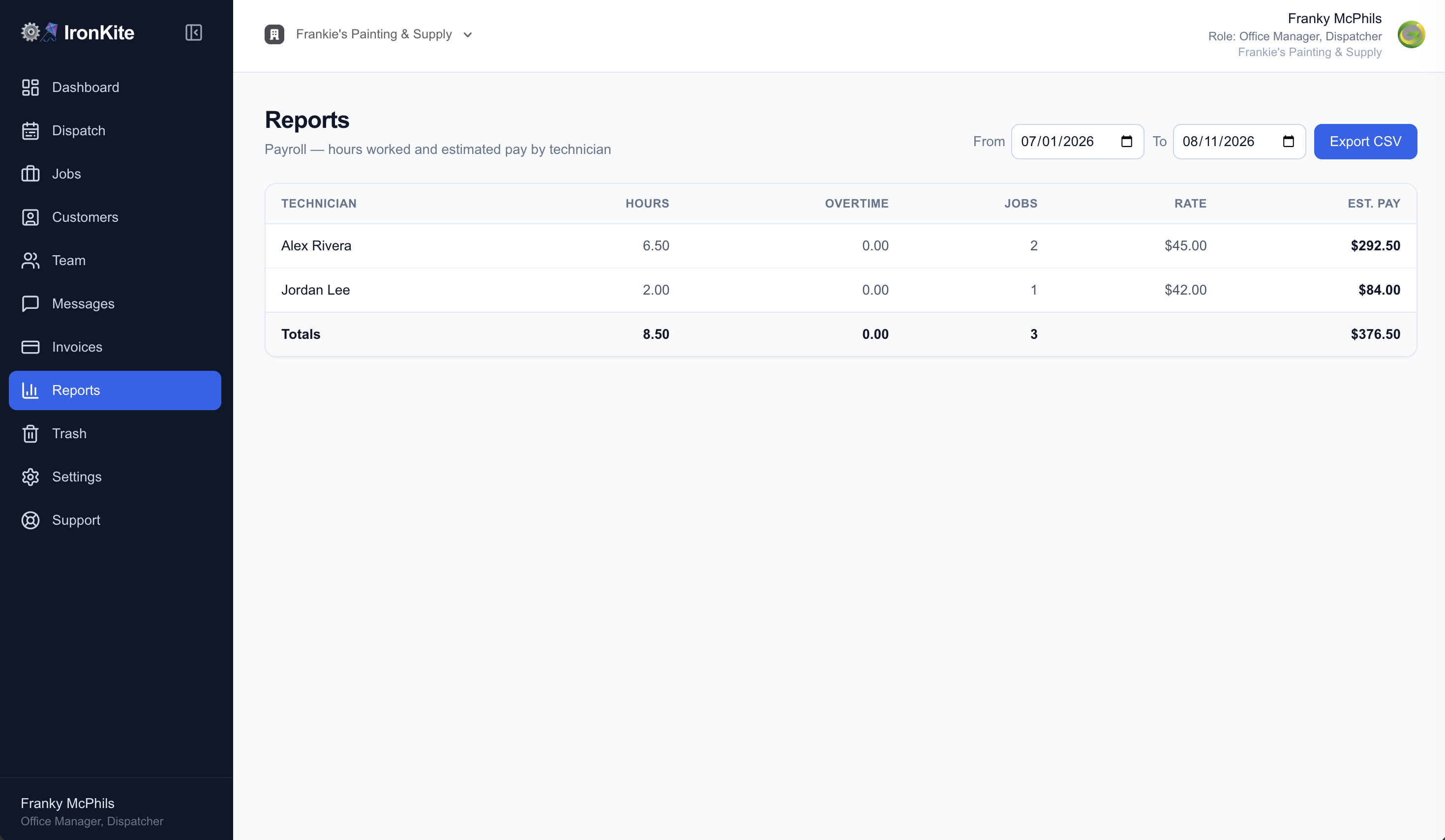
Reports — Business Insights, Not Just Numbers
The Reports section surfaces the trends that matter most for a trades business: revenue by period, jobs completed, tech utilization hours, and more. Export data for your accountant or use it to make smart scheduling decisions. Reports are scoped to your organization so every number you see reflects your actual business — not a sample dataset.
Trash — Safe Delete with Easy Restore
Deleted jobs, customers, or records don't disappear forever. They move to Trash so you can review and restore anything that was removed by mistake. It's a simple safety net that prevents accidental data loss without cluttering up your active views.
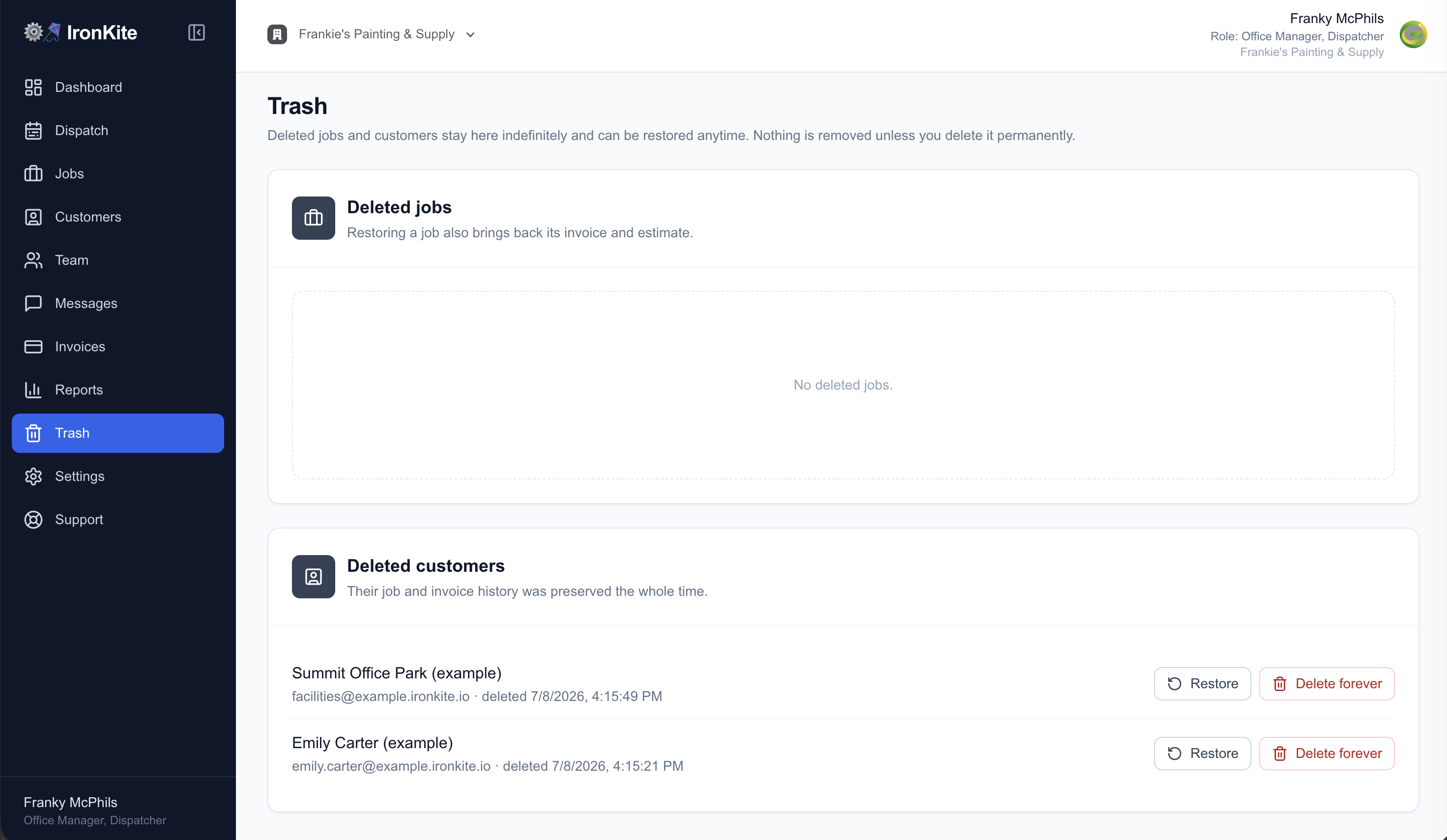
Settings — Company Profile & Integrations
Set up your company name, contact info, trade type, and default sales tax rate in the Company Profile editor. The Integrations panel is where you connect QuickBooks Online — a one-time OAuth flow that takes under two minutes. Once connected, customers, invoices, and payments sync automatically. No exports, no manual data entry, no duplicate bookkeeping.
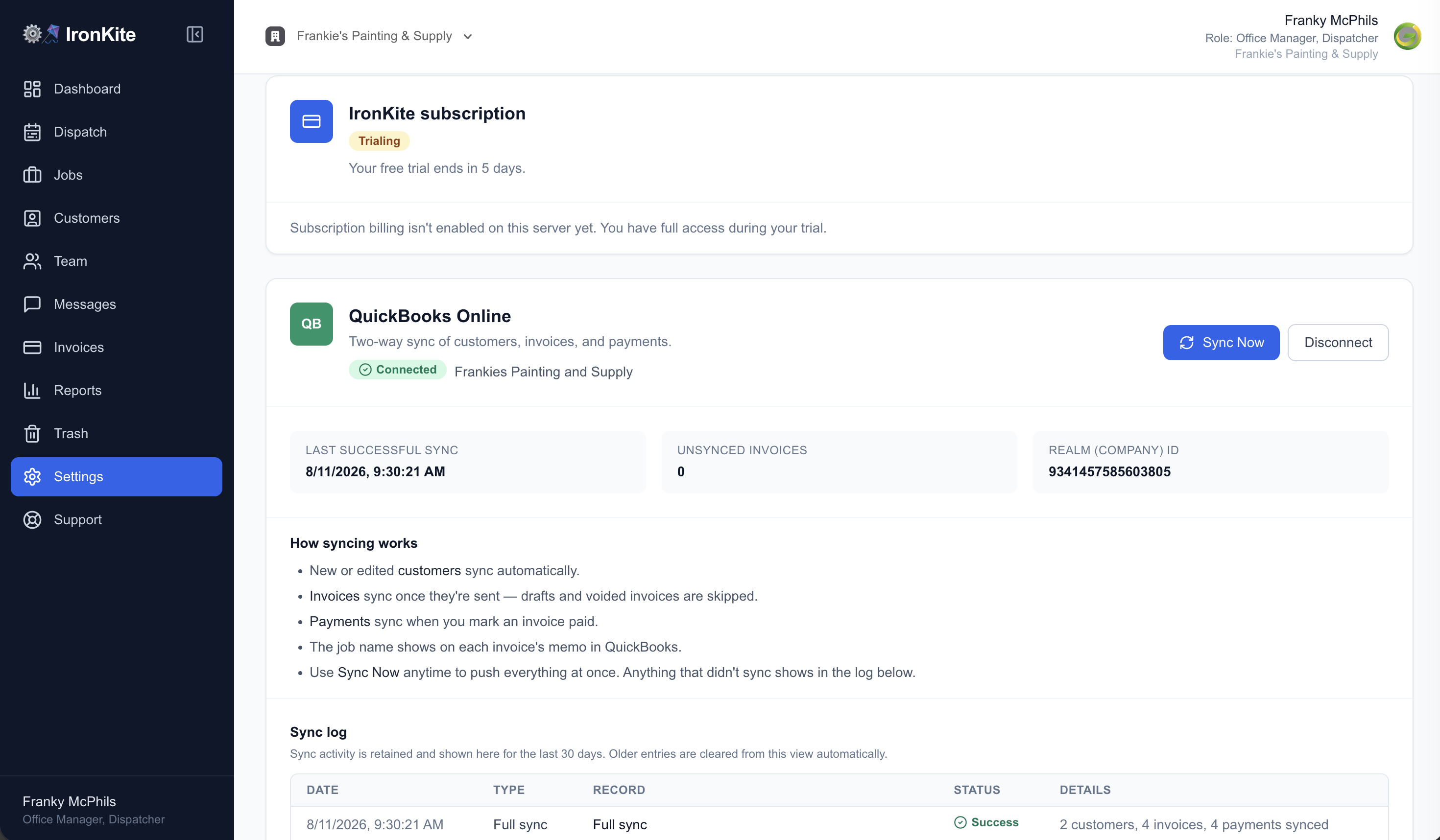
Support — Help, Feature Requests & Resources
The Support screen is your go-to for anything you need from the IronKite team. Download the IronKite Users' Manual PDF for a step-by-step guide to every screen. Submit a help request and get a real human response. Have an idea for a feature? Send it in — IronKite is built to move fast, and user requests directly shape what gets built next. The AI Assistant card will power in-app answers as that feature rolls out.
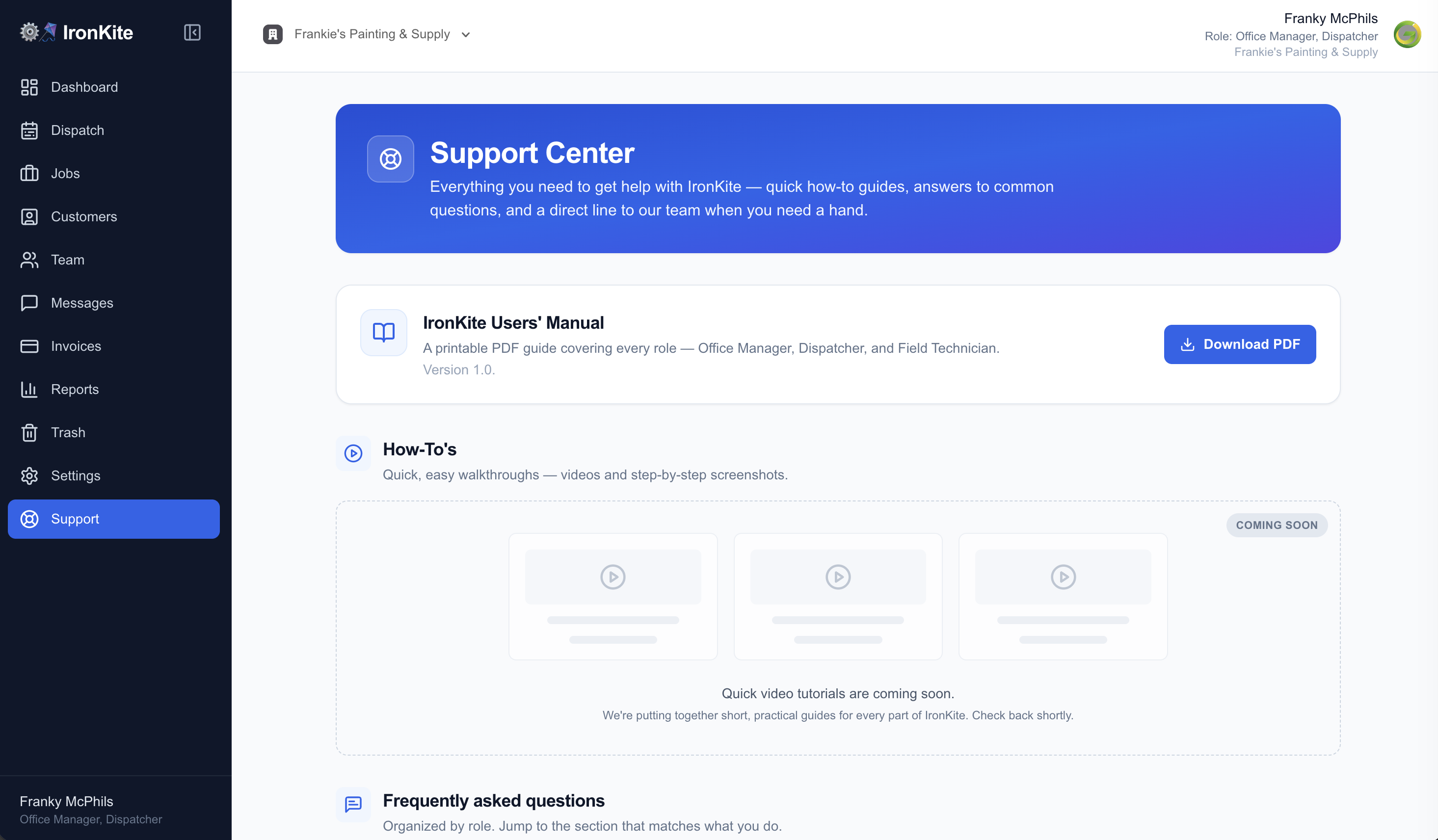
Field Technician — iOS & Android
Field techs work from a purpose-built native app — not a web page crammed onto a phone. It's designed for gloves-on, one-handed use anywhere: on the roof, in a crawl space, or wherever the job takes them. The app works fully offline and syncs automatically when signal returns, so lost connectivity never stops the work.
Today Screen — Your Day, Ready Before You Leave the Truck
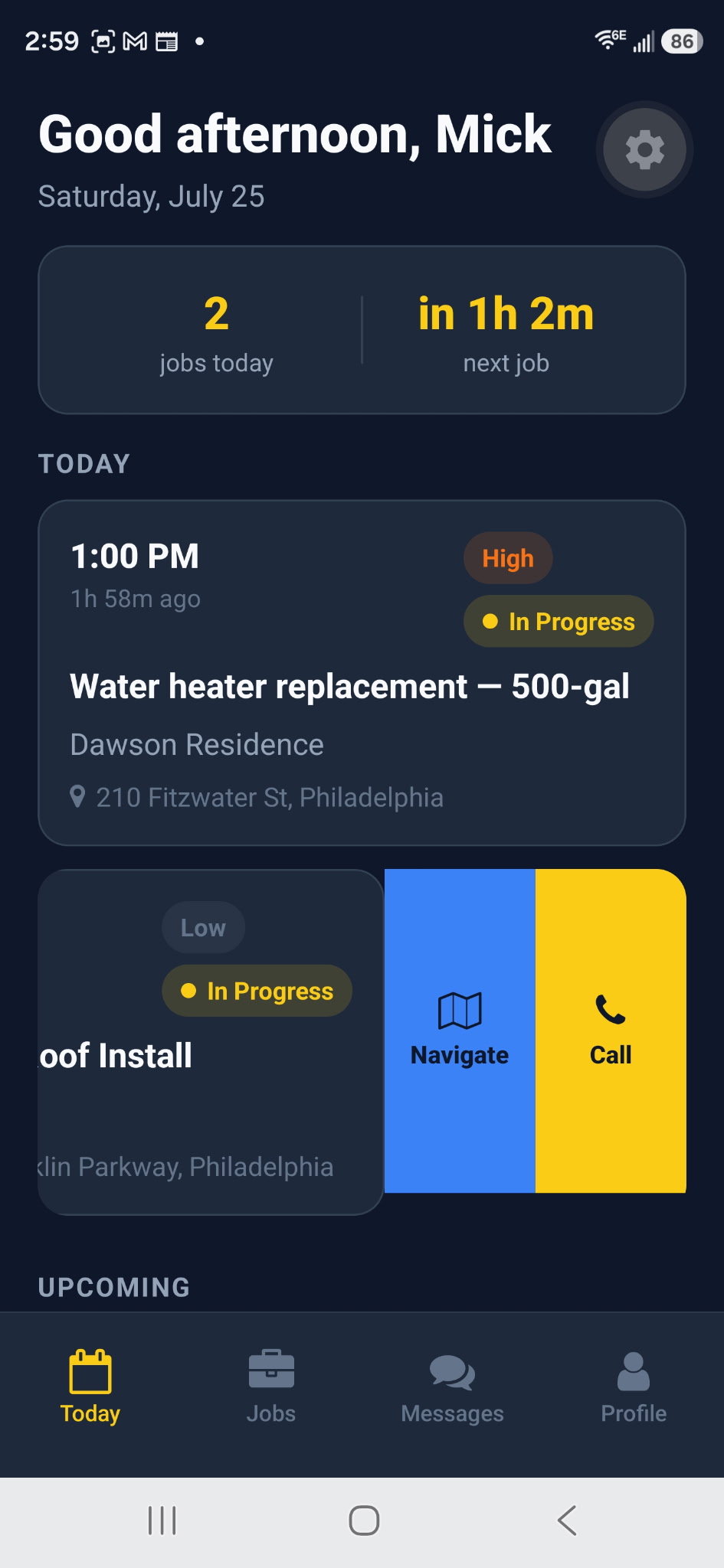
The first thing a field tech sees is their Today screen — a clean, prioritized list of every job assigned to them for the day. Job name, customer, address, scheduled time, status, and priority are all visible at a glance. One tap opens the full job detail. No login confusion, no digging through lists — just their day, clear and ready to work.
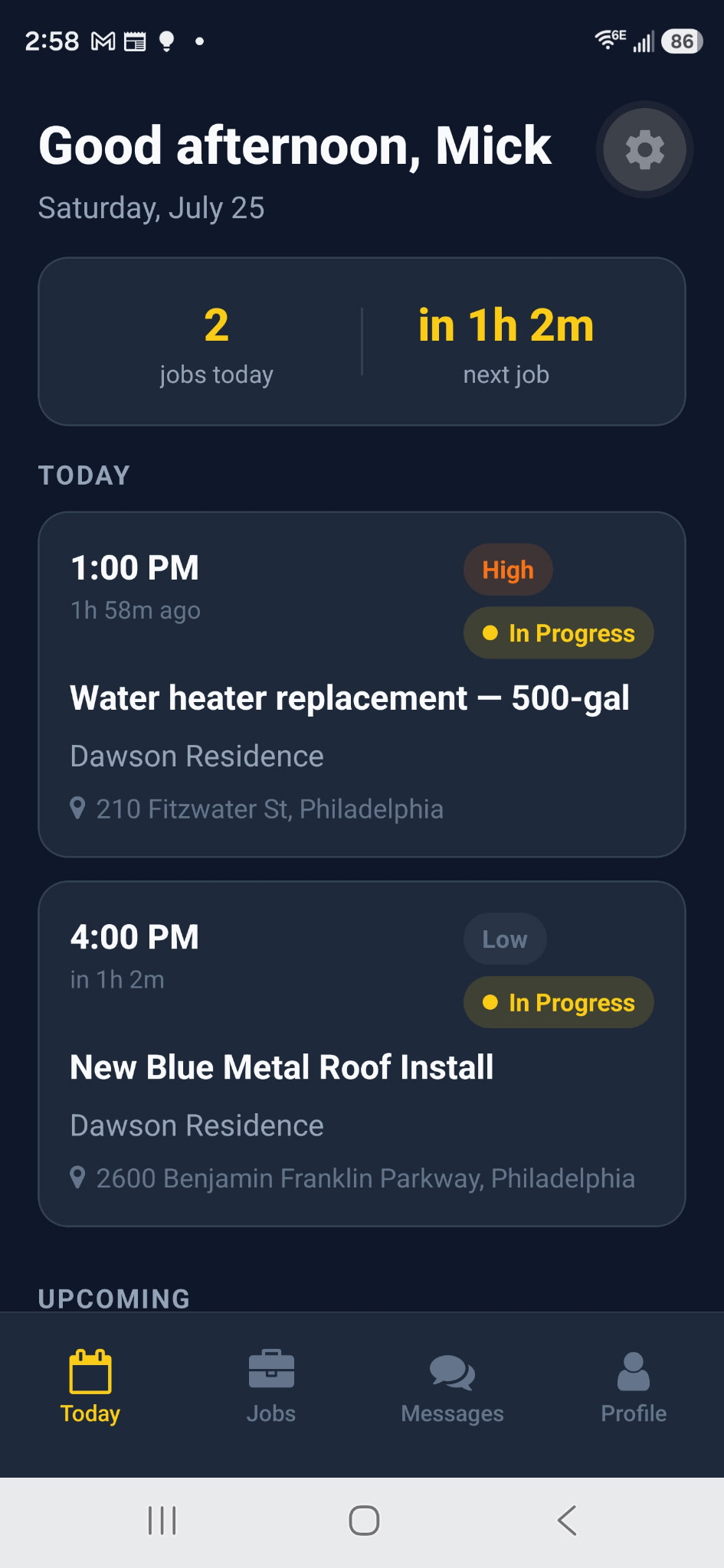
Navigation & Quick Actions — One Thumb, Full Control
The mobile app is built for people wearing work gloves. Every tap target is large, every action is one or two taps away. From the Today screen, techs can call the customer directly, navigate to the job site, or open any section of the app without hunting through menus. The bottom navigation keeps Home, Jobs, Messages, and Support always within reach.
Job Details & Time Tracking — Clock In, Do the Work, Clock Out
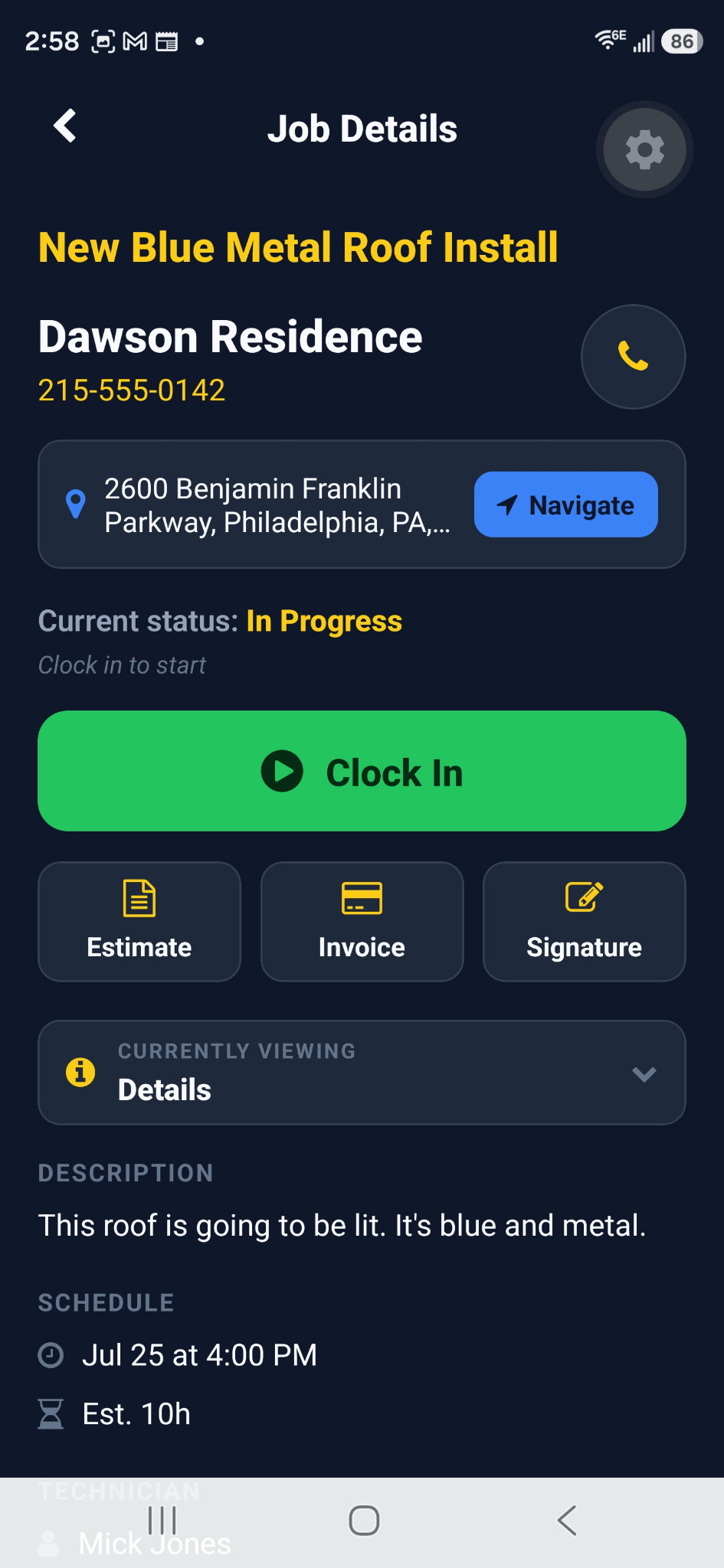
Every job detail the tech needs is on one screen — customer info, job notes, AI-cleaned voice notes, photos organized by Before/Progress/After, a to-do checklist, materials list, and time tracking. Clock in when you arrive, clock out when you're done. IronKite enforces one active job at a time so time entries are always clean and accurate. If AI tidies a dictated note, a confirmation appears so the tech always knows what was changed.
Messages — Stay Connected Even in the Field
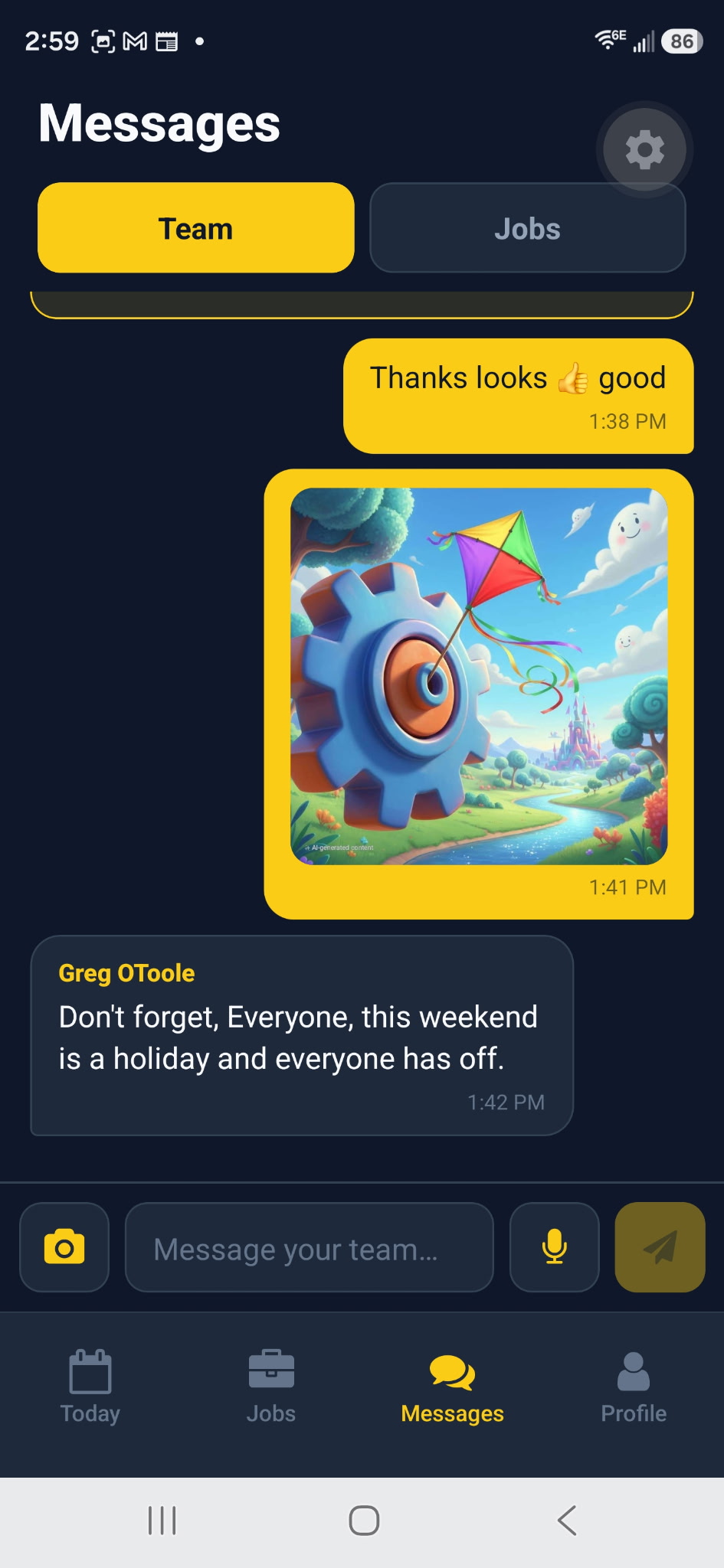
Field techs can send and receive team messages directly from the mobile app, without needing a separate texting thread or group chat. Announcements from the office land as push notifications. Replies are instant. The AI-powered message composer helps draft professional responses on the fly — just describe what you want to say and tap send. No more miscommunications between the truck and the office.
Support — Help Is Always in Your Pocket
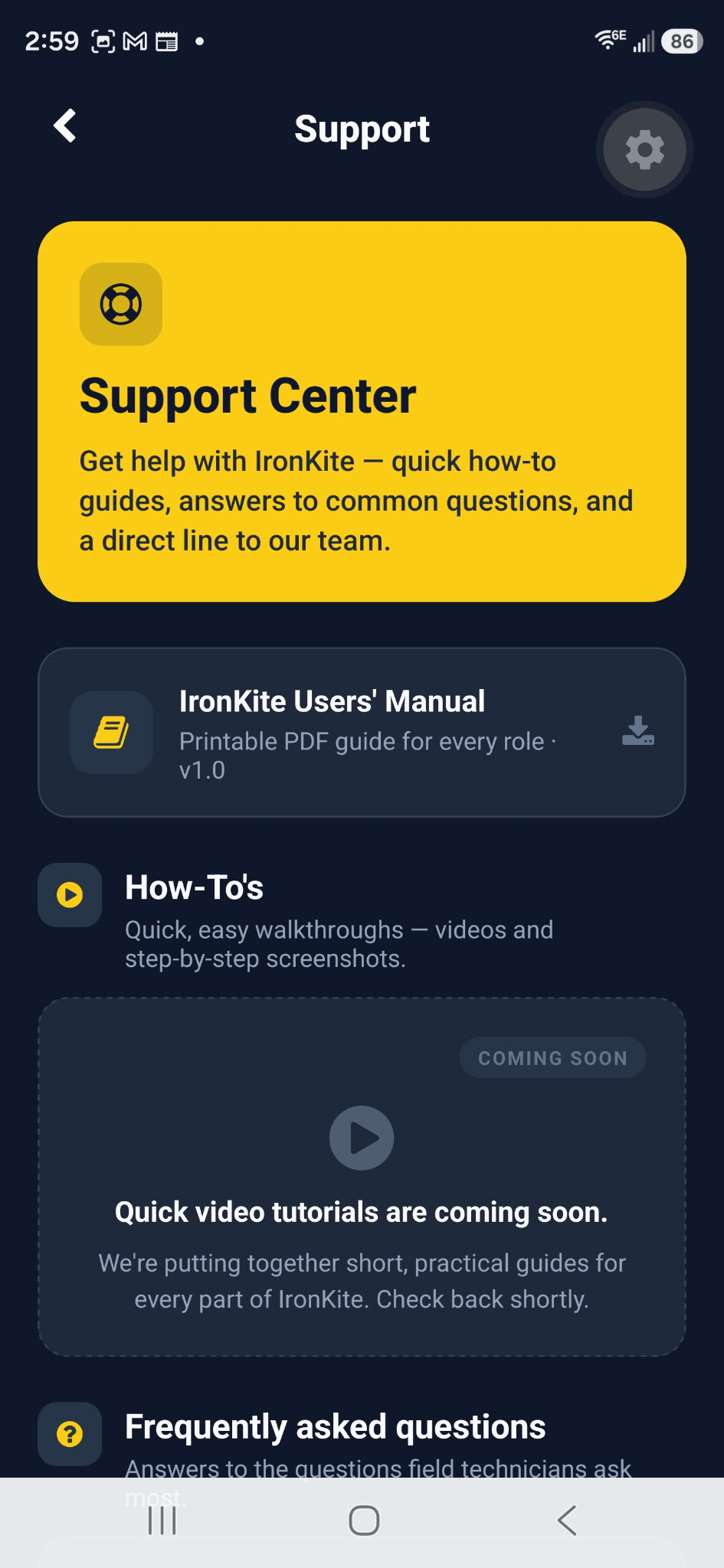
The mobile Support screen puts everything a field tech might need in one place. Download the IronKite Users' Manual PDF for reference anytime, even offline. Submit a help request or a feature idea directly from the app — the IronKite team responds fast. The IronKite AI Assistant will power on-demand in-app answers as that feature rolls out later this year.
Ready to see it live in your account?
Everything you just saw is available the moment you sign up — web console and mobile app included. No sales call. No setup fee. Your 14-day free trial starts in minutes.
Start Free — 14 Days